
Dashboard Overview
What Is the Dashboard?
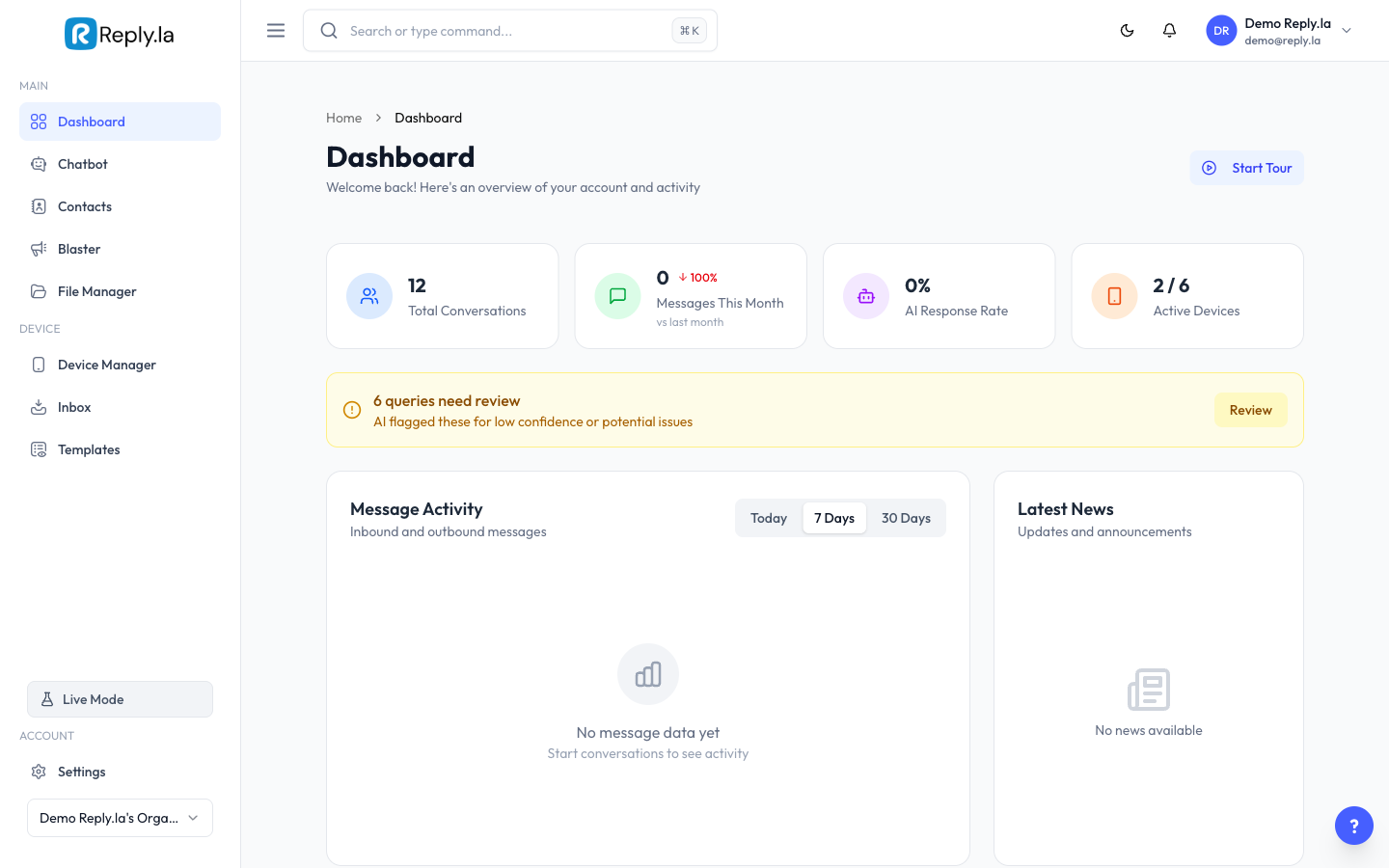
The Dashboard is the first page you see after logging in. It gives you a quick snapshot of how your WhatsApp chatbot is performing.
What You'll See
Stats Cards
- Total Conversations -- How many customer chats you've had.
- Messages This Month -- Number of messages sent and received.
- AI Response Rate -- How many messages were handled by AI vs. manually.
- Active Devices -- How many WhatsApp devices are connected.
Message Chart
A graph showing incoming and outgoing messages over time. From here you can see:
- Which days are the busiest
- Whether your chat volume is growing
- The balance between incoming messages (from customers) and outgoing messages (bot/you replying)
SpeedDial Button
A floating action button in the bottom-right corner of the dashboard. It gives you quick access to support and common actions without navigating away from the page.
Quick Actions
Shortcut buttons to common tasks: create a new profile, view inbox, manage devices, check AI feedback.
Blaster
Send broadcast messages to multiple contacts at once with Blaster.
Device Health
Status overview of all connected WhatsApp devices:
- Connected (green) -- Working smoothly.
- Disconnected (red) -- Needs to be checked and reconnected.
- Quality Rating -- How WhatsApp rates the quality of your number.
Subscription Card
Shows your current plan, remaining days, and subscription status.
Common Questions
What's a good AI response rate?
80% or higher means your AI is handling most conversations well. Below 50% means you should improve your Training Data and AI Knowledge.
Why does my device show as disconnected?
Go to Device Manager to check and reconnect your device.
Updated on: 21/04/2026
Thank you!