
File Manager
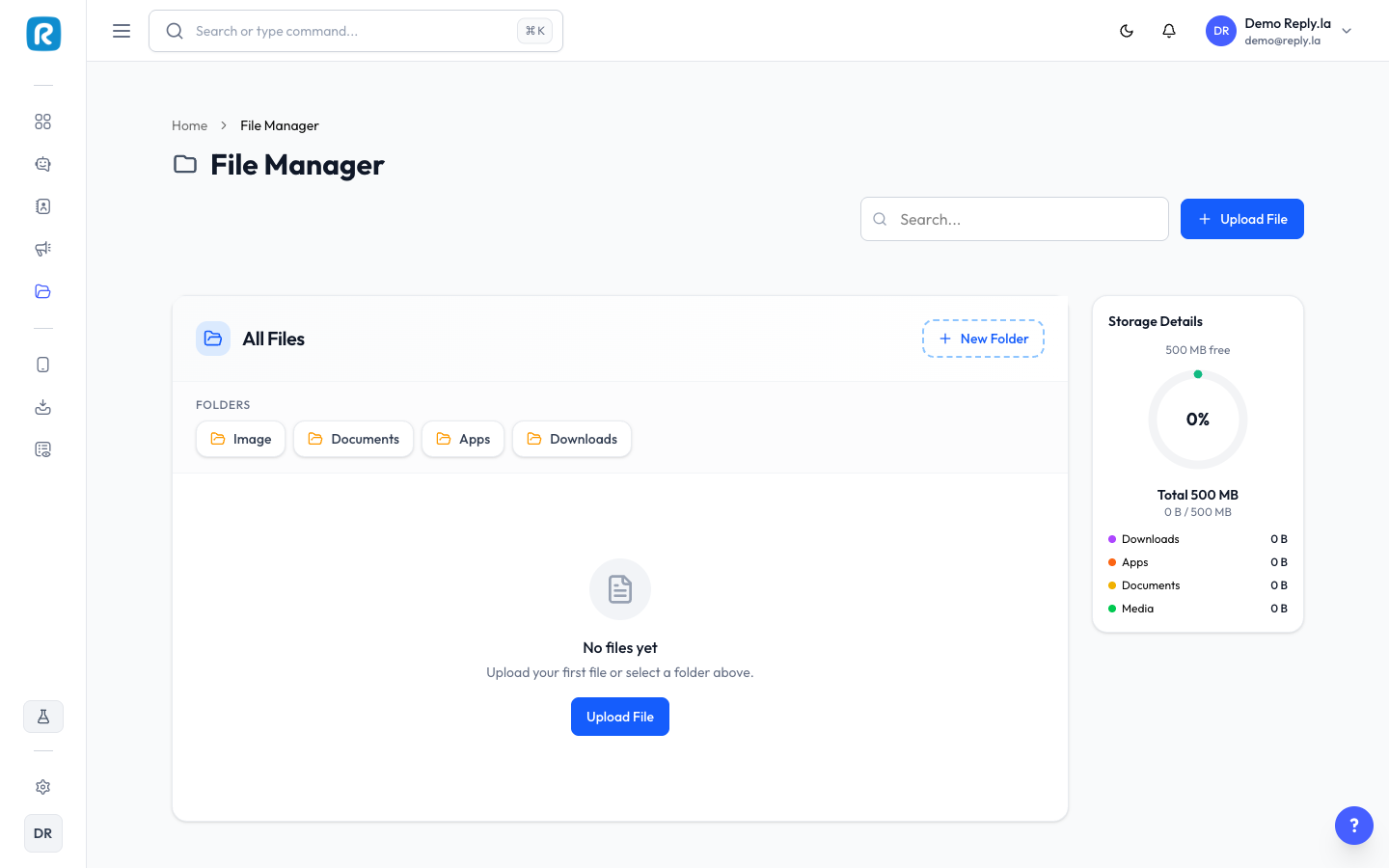
What Is File Manager?
File Manager is your central storage for all files in ReplyLa. Upload images, PDFs, documents, and other files. These can be used in Training Data, AI Knowledge, conversations, and shared across your team.
How To Use File Manager
- Click File Manager on the left sidebar.
- You will see all the files that have been uploaded.
Uploading Files
Click Upload, select files, and wait for the upload to complete.
Organizing Files
Use the search bar, browse folders, and sort by name, date, or size.
Deleting Files
Select files, click Delete, and confirm.
Supported File Types
- Images -- JPEG, PNG, GIF, WebP
- Documents -- PDF, Word (.docx), Excel (.xlsx)
- Text -- TXT, CSV
Common Questions
How much storage do I have?
It depends on your subscription plan. Check Settings > Subscription.
Can my chatbot send files to customers?
Yes! Files can be sent to customers through the Inbox.
What happens if I delete a file that's being used in AI Knowledge?
The AI Knowledge entry referencing that file may stop working. Always check whether a file is in use before deleting it.
Updated on: 21/04/2026
Thank you!