
Inbox
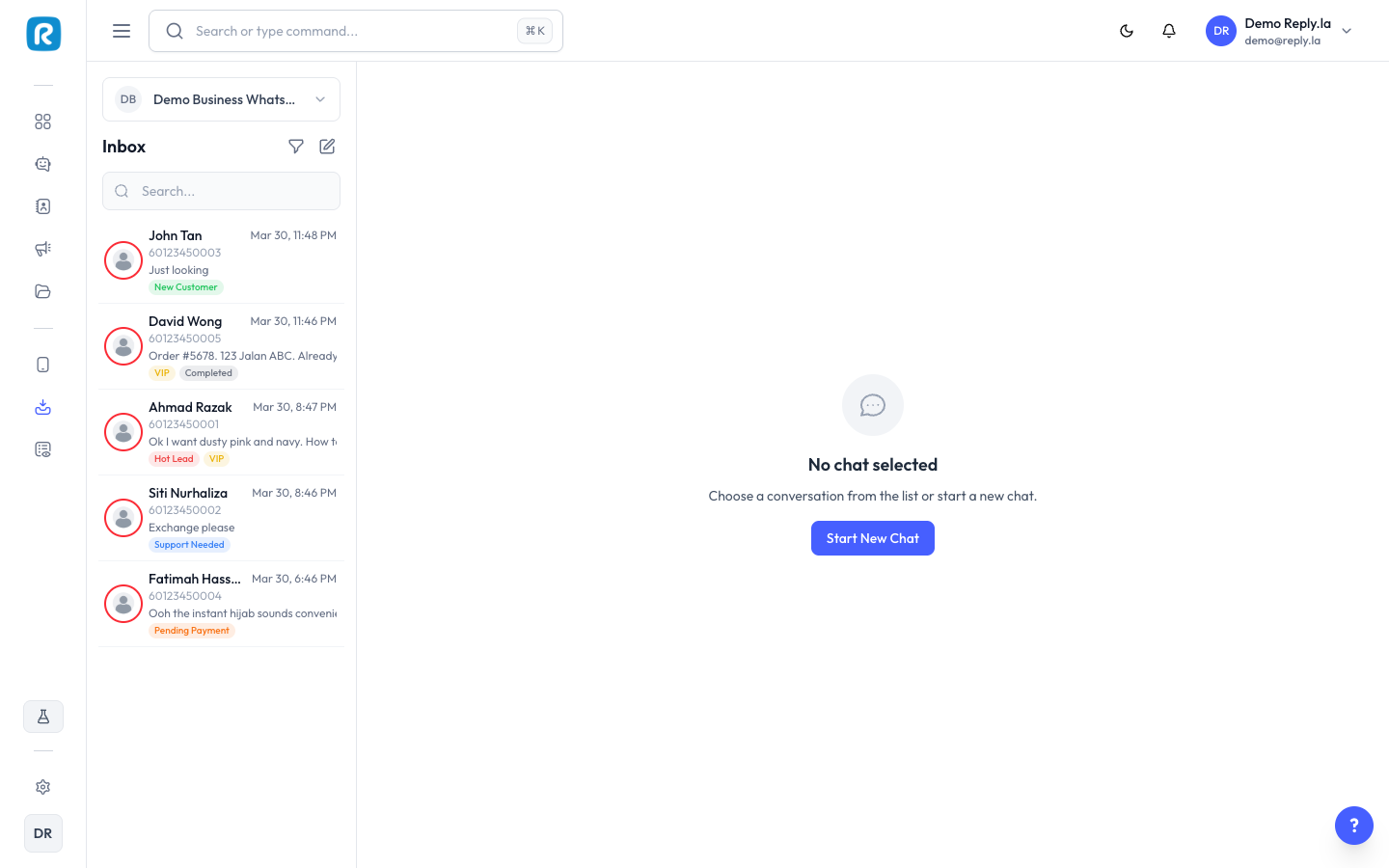
What Is the Inbox?
The Inbox is your live chat center. It shows all WhatsApp conversations across all your devices in one place.
How to Use Inbox
- Click Inbox on the left sidebar.
- On the left, you'll see a list of all chats.
- Click any conversation to open it.
- On the right, you can view the customer's details.
Inbox Layout
Section | Where | What It Shows |
|---|---|---|
Conversation List | Left panel | All chats, sorted by most recent. Shows contact labels for quick identification. |
Chat Area | Center | Full conversation with selected customer |
Customer Details | Right panel | Contact info, labels, history, and notes |
Chatting with Customers
Sending a Message
- Click on a conversation.
- Type your message in the text box.
- Press Enter or click Send.
Sending Files and Media
- Click the attachment icon in the chat box.
- Select the file type (image, document, etc.).
- Choose the file from your computer.
- Click Send.
Starting a New Conversation
Starting a new conversation uses a guided step wizard:
- Click New Conversation.
- Select which device to send from.
- Enter the customer's phone number.
- Choose a template message (required for first-time contacts or expired conversations).
- Fill in any template variables and send.
Filtering Conversations
- By Channel -- Specific WhatsApp device.
- By Chatbot -- Specific chatbot.
- By Status -- All, Assigned, Unassigned, or Unread.
- By Label -- Contacts with a specific label.
- Search -- By customer name or phone number.
AI and Manual Replies
Customer Details Panel
View and manage:
- Name and phone number
- Labels -- View and manage labels for this contact.
- Conversation History -- Past messages with this customer.
- Memory -- What the AI remembers about this customer (if AI Memory is enabled).
- Actions -- Clear memory, set labels, or add information to the knowledge base.
Conversation Costs
Token usage is now visible per conversation. You can:
- See how many tokens each conversation has used.
- View the split between BYOK (Bring Your Own Key) tokens and Platform tokens.
- Open a usage modal with date filtering to analyze costs over a specific period.
Wait-for-Reply
The AI waits for customers to finish typing before responding. If a customer sends multiple messages in a row, the AI waits for a pause before replying -- so it doesn't interrupt them mid-thought.
Common Questions
Do I need to reply to every message manually?
No! Your AI chatbot handles most messages automatically. Only jump in when needed.
How do I know if the AI or I replied?
AI replies have an AI badge/icon. Manual replies show as regular messages.
Can multiple team members use the Inbox?
Yes! Team members can access the Inbox based on their permissions in Organization settings.
Can I view the chat from the customer's perspective?
The Inbox shows messages exactly as they appear on the customer's WhatsApp.
Can I send WhatsApp templates from Inbox?
Yes, look for the template option when composing a message.
Can I see how much each conversation costs?
Yes, token usage per conversation is now visible in the Inbox. You can view a breakdown of BYOK vs Platform tokens and filter usage by date.
Updated on: 21/04/2026
Thank you!