
Contact List
What Is the Contact List?
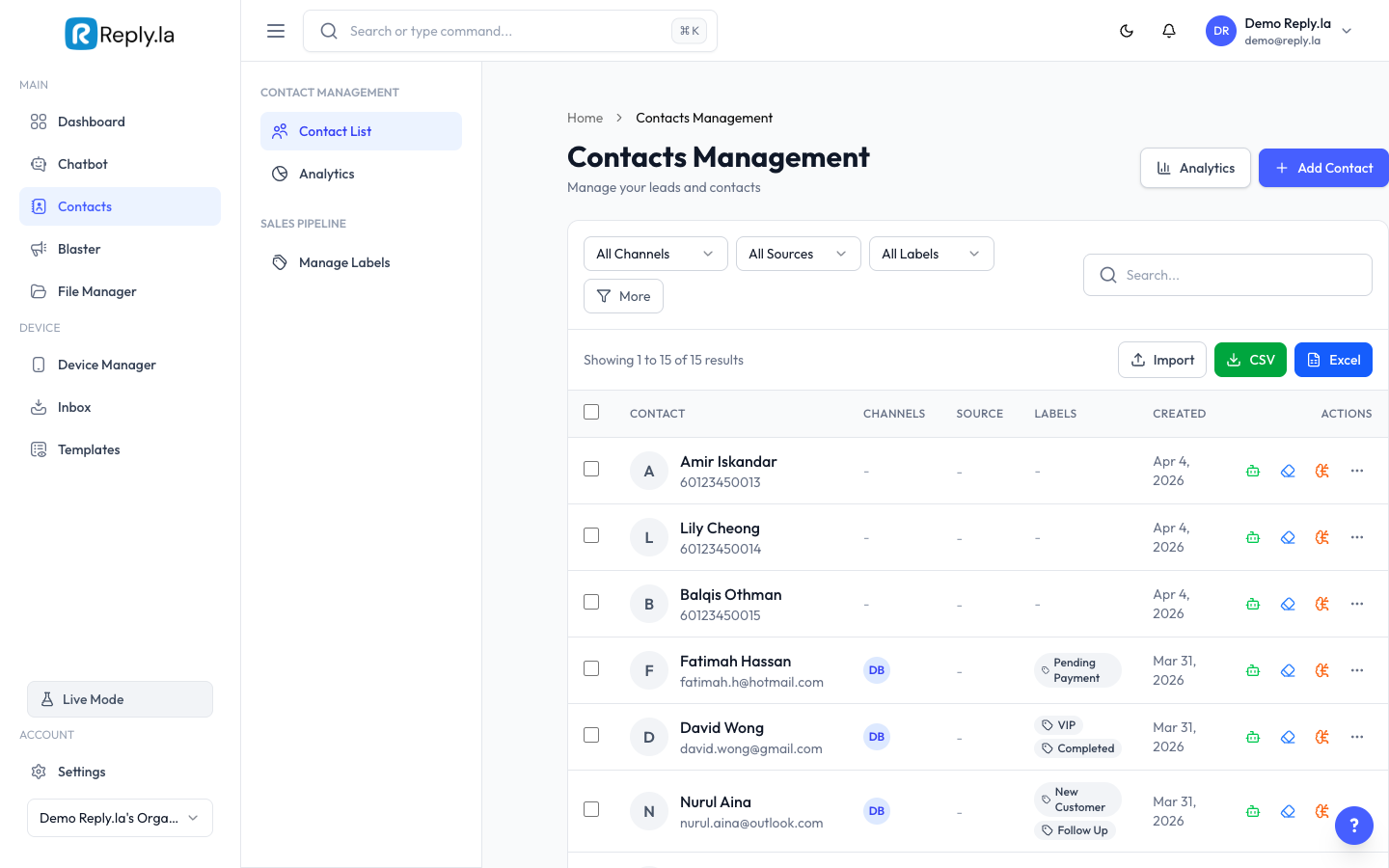
The Contact List shows everyone who has messaged your WhatsApp business number. Each contact shows their name, phone number, labels, device, and last message time.
Searching and Filtering
Use the search bar to find contacts by name, phone number, or email. Filter by:
- Channel -- Show contacts from a specific WhatsApp device.
- Label -- Show contacts with a specific label (e.g., "Hot Lead").
- Lead Source -- Filter by where the contact came from.
- Date -- Show contacts added within a date range.
Managing Contacts
View Details
Click on any contact to see their full profile: name, phone, email, company, labels, conversation history, and linked channel.
Create Manually
- Click the + button at the top.
- Fill in Name, Phone (with country code), and Email (optional).
- Click Save.
Edit a Contact
- Click on a contact to open their profile.
- Click the Edit button.
- Update their information.
- Click Save.
Export Contacts
Click the Export button (download icon) to download your contacts as a spreadsheet.
Common Questions
How are contacts created?
Automatically when someone sends a WhatsApp message to your business number. You can also create them manually.
Can I delete a contact?
Yes, click on the contact and use the delete option. Conversation history is preserved.
Can I import contacts from a file?
Check if your plan supports contact import. Some plans allow importing from CSV/Excel files.
What's the difference between 'AI' and 'Manual' labels?
Labels can be set by the AI (via Auto Label) or manually by you. The badge next to each label shows how it was set.
Updated on: 21/04/2026
Thank you!