
Manage Labels
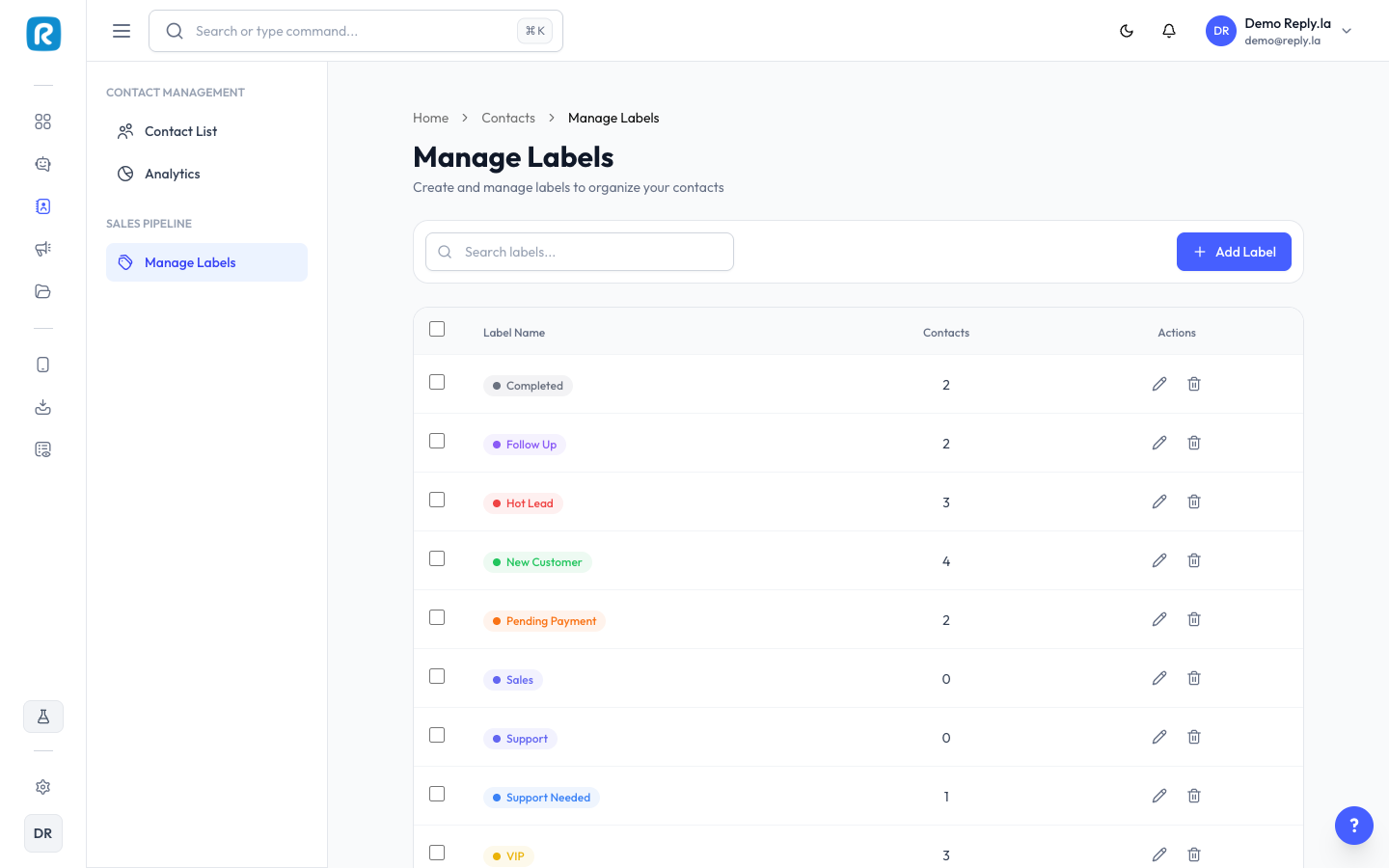
What Are Labels?
Labels are tags you attach to contacts to organize them. Think of them like colored stickers on a filing cabinet.
How To Manage Labels
- Click Contacts > Manage Labels.
- Create, edit, or delete labels.
Creating a Label
- Click Create Label or +.
- Enter the label name.
- Click Save.
Editing a Label
- Click the edit icon next to the label you want to change.
- Update the name.
- Click Save.
Deleting a Label
- Click the delete icon next to the label.
- Confirm the deletion.
Suggested Labels
For Online Shops
Label | Use For |
|---|---|
Hot Lead | Actively asking about products, ready to buy |
Warm Lead | Interested but not ready yet |
Customer | Has made a purchase |
Repeat Customer | Has purchased more than once |
Returns/Exchange | Requesting a return or exchange |
For Service Businesses
Label | Use For |
|---|---|
Inquiry | Asking about services |
Booked | Has made an appointment/booking |
Completed | Service has been completed |
Follow-up | Needs a follow-up call/message |
VIP | High-value client |
For Restaurants/F&B
Label | Use For |
|---|---|
New Customer | First-time customer |
Regular | Orders from you frequently |
Catering Inquiry | Asking about catering/bulk orders |
Complaint | Has an issue with service or food |
Common Questions
Can a contact have multiple labels?
Yes! A contact can have several labels at once (e.g., "VIP" and "Repeat Customer").
Is there a limit to how many labels I can create?
No strict limit, but keep it manageable. 5-10 labels is usually enough.
What happens to contacts when I delete a label?
The label is simply removed from those contacts. The contacts themselves are not affected.
Updated on: 21/04/2026
Thank you!