
AI Checker
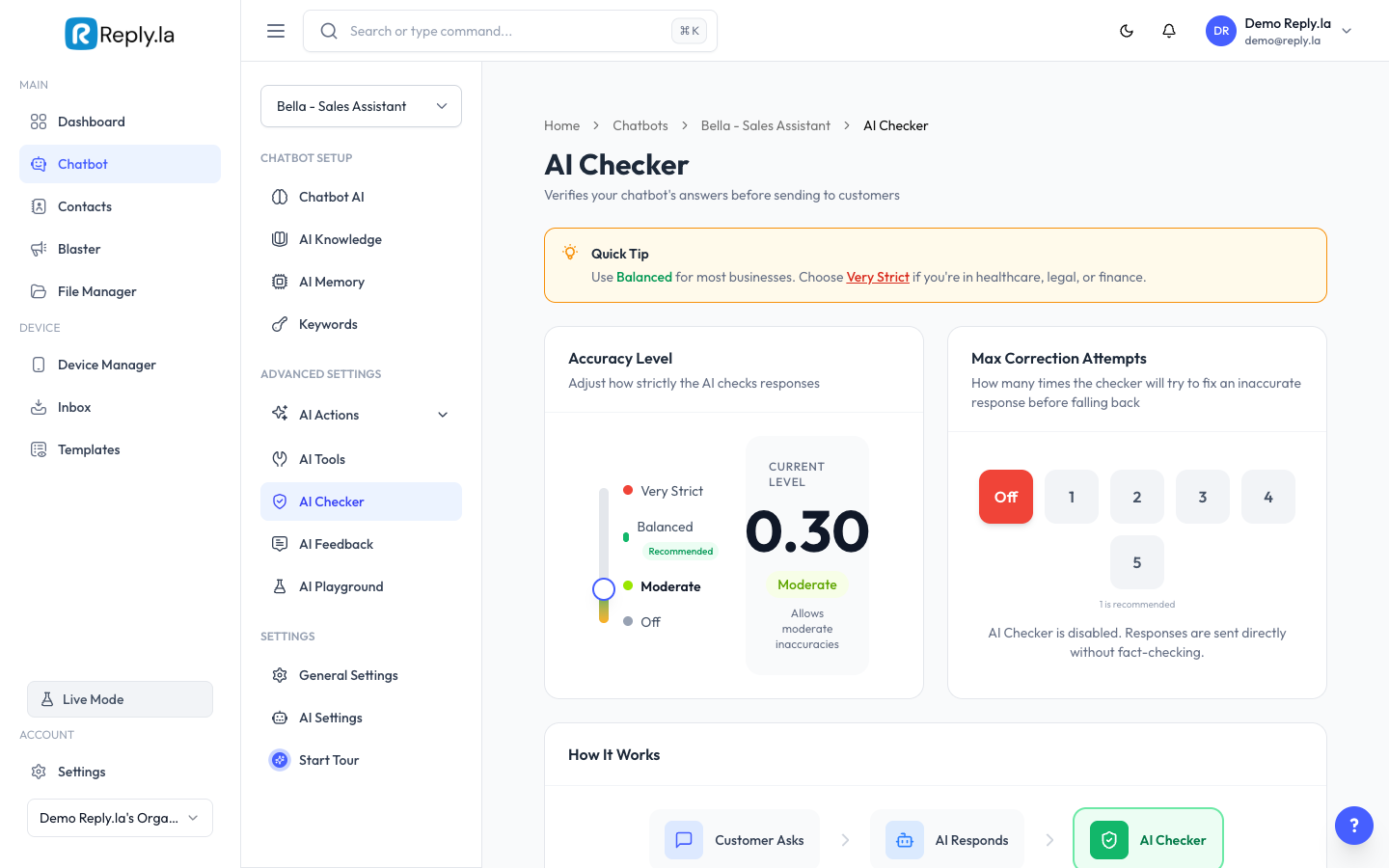
What Is AI Checker?
Sometimes AI can "hallucinate" -- making up information that sounds correct but isn't true. AI Checker acts like a second pair of eyes. Before your chatbot sends a reply, AI Checker verifies the information against your business data.
How To Set Up AI Checker
- Go to Chatbot > click your chatbot > AI Checker.
- Toggle AI Checker on for this chatbot. You can enable or disable it per chatbot.
- (Optional) Select a dedicated AI model for checking. This can be a different model from your chatbot's main model.
- Adjust the Accuracy Level slider:
- Relaxed -- Less strict. Good for casual chatbots.
- Balanced -- Recommended for most businesses.
- Very Strict -- Maximum accuracy. Best for regulated industries.
- Set the Maximum Retries -- How many times the AI should try to fix an incorrect answer (1-2 is usually enough).
- Click Save.
Which Level Should I Choose?
Level | Best For | How It Works |
|---|---|---|
Relaxed | General chat, creative bots | Only catches major errors |
Balanced | Most businesses (shops, restaurants, services) | Good balance of accuracy and speed |
Very Strict | Healthcare, legal, finance | Checks everything thoroughly |
Common Questions
Does AI Checker slow down replies?
Slightly. There's a small delay for verification. Most customers won't notice.
Does it cost more tokens?
Yes, a small amount extra per message for the verification step. Think of it as insurance against wrong answers.
What happens if the checker can't fix an answer?
After maximum retries, the AI sends the best version it has. In very strict mode, it may tell the customer to contact you directly.
Can I view what the checker caught?
Yes, check the AI Feedback page for flagged queries where the AI was uncertain.
Can I use a different AI model for checking?
Yes, you can select a dedicated model for AI Checker separately from your chatbot's main model. This lets you use a more powerful model for verification without changing your chatbot's primary model.
Updated on: 21/04/2026
Thank you!