
General Settings
What Is General Settings?
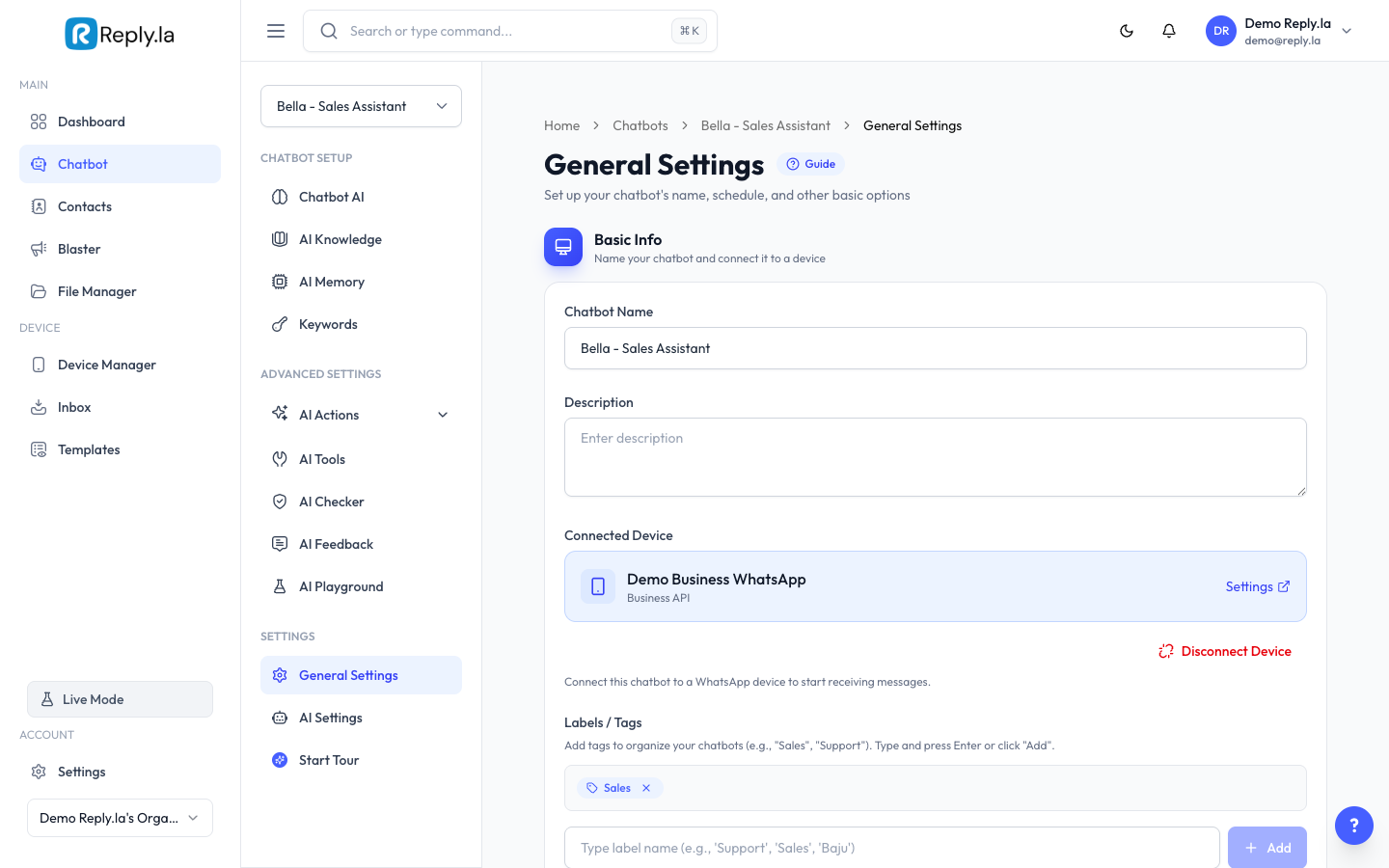
This is the basic configuration page for your chatbot. Change its name, connect or disconnect a WhatsApp device, add labels, and turn the chatbot on or off.
What You Can Configure
Chatbot Name and Description
- Go to Chatbot > click your chatbot > General Settings.
- Edit the Name and Description fields.
- Click Save.
Link a Device
- In General Settings, find the Device section.
- Select a device from the dropdown.
- Click Save.
Labels
Labels help you organize your chatbots.
- In the Labels section, type a label name and press Enter to add it.
- Click the X next to a label to remove it.
- Click Save.
Chatbot Status (Active/Inactive)
- Active -- The chatbot is running and will reply to messages.
- Inactive -- The chatbot is paused. Messages will not get automatic replies.
Response Timing
- Typing Delay -- How long the chatbot "types" before sending (makes it feel more natural).
- Response Cooldown -- Minimum time between responses to avoid flooding.
Greeting and Closing Messages
- Greeting Message -- Welcome message sent to new contacts on their first message.
- Closing Message -- Message sent after a conversation is marked as resolved.
Common Questions
Can I have multiple chatbots active at the same time?
Yes, but each chatbot must be linked to a different device (WhatsApp number).
What happens to messages when my chatbot is inactive?
Messages are still received and stored in the Inbox, but the chatbot won't auto-reply.
I changed the chatbot name but customers still see the old name on WhatsApp. Why?
The chatbot name is for internal use within ReplyLa only. Your WhatsApp display name is managed through your WhatsApp Business settings, not here.
Updated on: 21/04/2026
Thank you!