
AI Settings
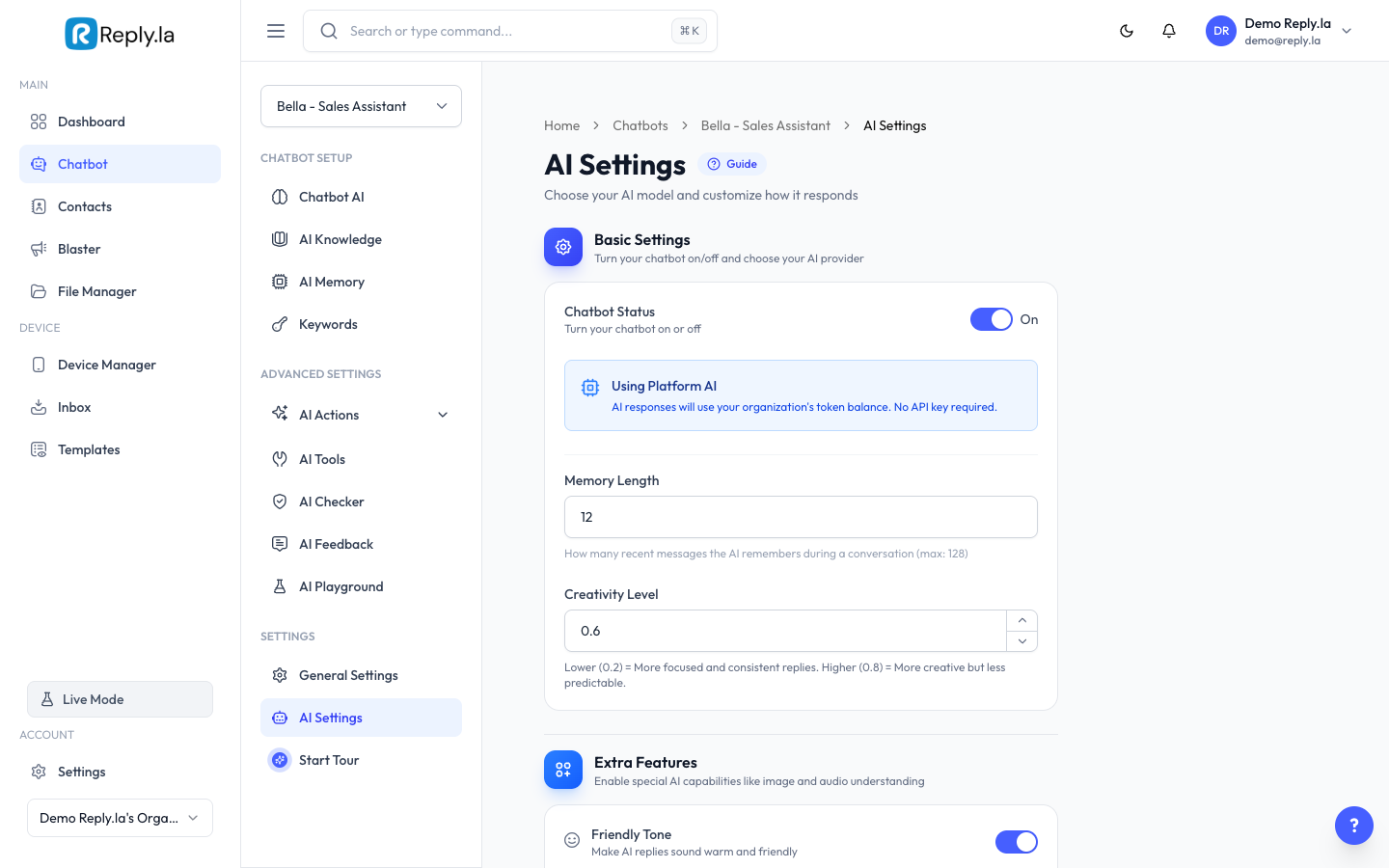
AI Settings controls how your chatbot replies -- which AI model powers it, how focused or creative it sounds, what it can see and hear, and what it remembers.
Open it from the chatbot sidebar: Chatbot → your chatbot → AI Settings.
Basic Settings
Chatbot Status
A simple on/off switch. When off, the chatbot ignores all incoming messages. Use this when training or editing without risking a half-baked reply going out.
Platform AI vs Your Own API Key
Two ways to power the chatbot:
Platform AI (default) | Your Own API Key | |
|---|---|---|
Setup | Nothing to do -- it's on | Paste your OpenAI API key |
Billing | Deducts from your token balance | Billed directly by OpenAI |
Model choice | We pick the best default | You pick from the dropdown |
Best for | Most businesses | High-volume users who already have AI credits |
The Use Own API Key toggle only appears on plans that support it. If you don't see it, you're on Platform AI and that's fine for most use cases.
API Key
Only shown when Use Own API Key is on.
Paste your OpenAI key (starts with sk-...). Click the eye icon to reveal or hide it. Your key is stored encrypted.
AI Model
Only shown when Use Own API Key is on. The dropdown lists supported models:
- GPT-4.1 / GPT-4.1 Mini / GPT-4.1 Nano -- Latest generation. Mini is the sweet spot for most chatbots. Nano is cheapest but noticeably dumber.
- GPT-4o / GPT-4o Mini -- Previous generation. Still solid.
Pick Mini unless you have a reason not to. Powerful models are not always better for customer chat -- they can overthink simple questions.
Memory Length
How many recent messages the AI remembers inside one conversation. Max is 128, default behaviour is about 12.
Example:
- Memory Length = 12 -- AI sees the last 12 messages. A customer asking "how much is it?" 15 messages after you quoted the price will get asked again.
- Memory Length = 50 -- AI remembers the whole typical order conversation. Uses more tokens per reply.
Creativity Level
A slider from 0.1 (most focused) to 1.0 (most creative). Default is 0.6.
Setting | What you get | Good for |
|---|---|---|
0.1 - 0.3 | Same answer to the same question every time. Sticks tight to your training. | Pricing, policies, order status |
0.4 - 0.6 | Slight variation, still on-script | Most businesses (default) |
0.7 - 1.0 | Noticeable variety, may improvise | Brainstorming assistants, creative brands |
Example: a skincare brand asking about ingredient benefits wants consistent, accurate answers -- use 0.2. A party-planning chatbot that suggests themes can sit at 0.8.
Extra Features
Friendly Tone
Makes the AI sound warmer -- greetings, emojis, softer phrasing. Turn off if you want flatter, business-like replies.
Example with tone ON: "Hi sis! 😊 So glad you asked -- our Vitamin C serum is RM89..."
With tone OFF: "Our Vitamin C serum is RM89."
Strict Mode
When ON, the AI will only answer using your training data and knowledge base. If a customer asks something you haven't covered, the AI says it doesn't know instead of guessing.
Turn this on for regulated businesses (medical, legal, finance) where a wrong made-up answer is worse than "I don't know."
Send Images & Videos
When ON, the AI can attach images from your File Manager into replies -- product photos, testimonials, certificates, etc.
Example: customer asks "show me the 3-bottle package" and the AI sends the package image automatically.
Understand Images
When ON, the AI can read photos customers send -- receipts, screenshots, product questions with a picture. Uses extra tokens per image.
Example: customer sends a photo of a rash and asks which product helps. AI looks at the photo and recommends accordingly.
Understand Voice Messages
When ON, the AI transcribes voice notes customers send and replies as if they'd typed the message. Uses extra tokens per voice note (roughly per second of audio).
Useful in Malaysia where many customers prefer voice over typing.
Privacy Mode
When ON, the AI won't see the manual replies you send from Inbox. The AI only sees the customer's side of the conversation plus its own past replies.
Use this when your team writes sensitive responses (financial quotes, internal pricing) that you don't want the AI to learn from or reference later.
Recommended Starter Settings
For a typical Malaysian business (retail, services, e-commerce):
- Platform AI: ON
- Creativity Level: 0.4
- Memory Length: 20
- Friendly Tone: ON
- Strict Mode: OFF (turn on later once training data is solid)
- Send Images & Videos: ON
- Understand Images: ON
- Understand Voice Messages: ON
- Privacy Mode: OFF
Save, test in AI Playground, adjust from there.
Common Questions
My replies feel repetitive. What do I change?
Raise Creativity Level by 0.2, save, test in AI Playground. If still stale, turn off Friendly Tone (it pushes towards a consistent warm tone that can feel templated).
My replies go off-topic. What do I change?
Lower Creativity Level to 0.2, turn on Strict Mode. Also check your Training Data -- off-topic usually means the AI is filling gaps with general knowledge.
Does raising Memory Length make the AI smarter?
Only for long conversations. For quick "how much / when open / where shop" questions, memory beyond 10 does nothing. If your typical conversation is 5 back-and-forths, Memory Length 12 is fine.
What happens if I change the model mid-conversation?
The new model is used from the next incoming message onward. Previous messages in the conversation stay as they were -- the AI just picks up from there.
Do I need to tell customers I changed settings?
No. Settings apply silently to new replies only.
Updated on: 22/04/2026
Thank you!