
Keywords
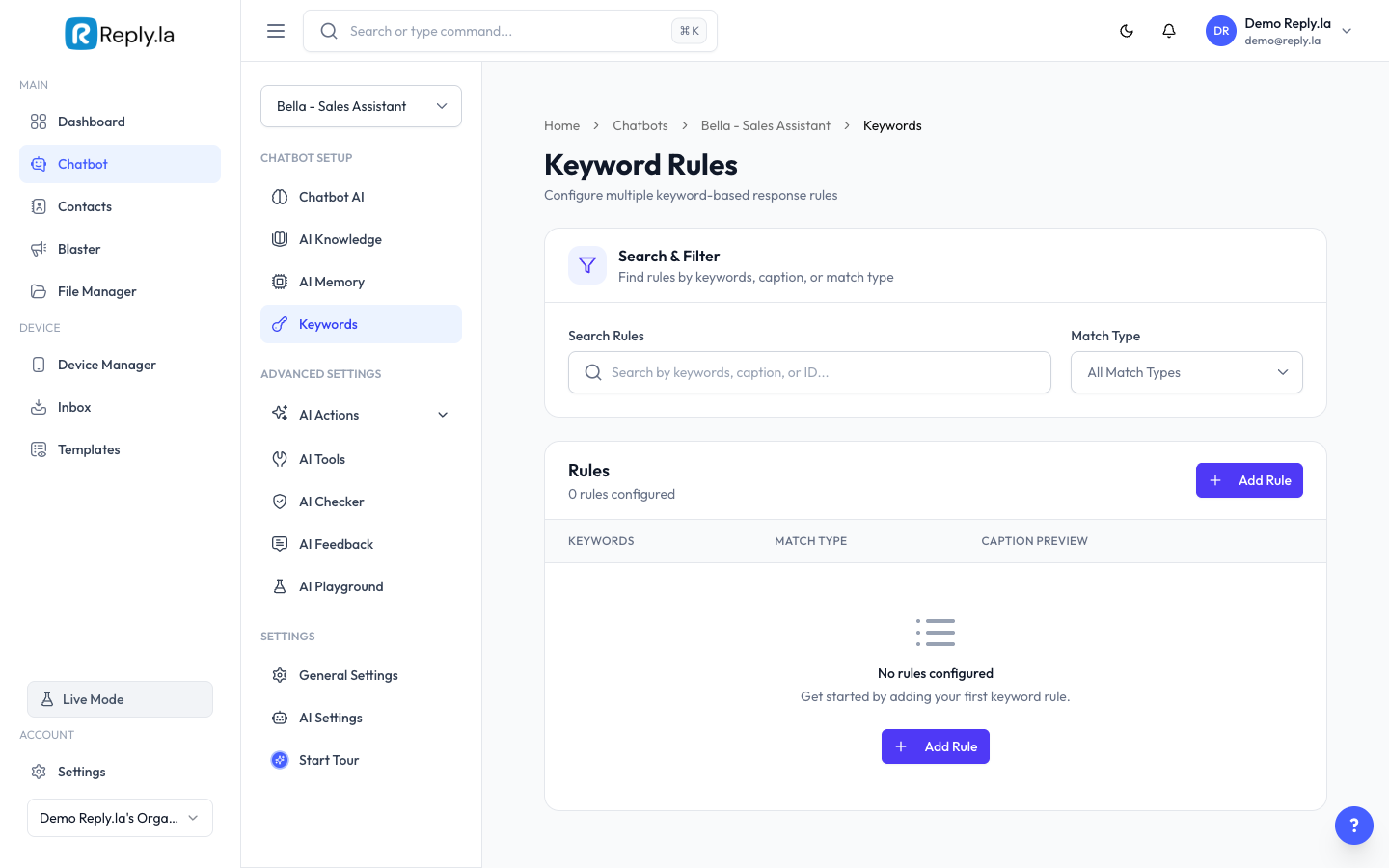
What Is Keywords?
Keywords are like a shortcut system. When a customer types a specific word or phrase, the chatbot immediately sends a pre-written reply -- no AI thinking needed.
Example:
- Customer types: "price list"
- Chatbot instantly replies: "Here's our latest price list!"
How To Create a Keyword Rule
- Go to Chatbot > click your chatbot > Keywords.
- Click Create Keyword (the + button).
- Fill in the details:
- Keywords -- The word(s) that trigger this rule. You can add multiple keywords separated by commas.
- Match Type:
- Exact Match -- The customer must type this exact word/phrase.
- Contains Match -- The keyword just needs to appear somewhere in the message.
- Reply -- The message your chatbot will send.
- Click Save.
Good Keyword Examples
Keyword | Match Type | Reply |
|---|---|---|
"price", "harga" | Contains | "Here's our price list: [link]" |
"location", "lokasi", "address" | Contains | "We are at No. 15, Jalan Masjid, PJ" |
"hours", "waktu", "buka" | Contains | "We're open Mon-Sat 10am-8pm, Sunday 12pm-6pm" |
"hi", "hello" | Exact | "Hi there! Welcome to our shop. How can I help?" |
When To Use Keywords vs AI
Use Keywords When | Use AI When |
|---|---|
The answer is always the same | The answer varies based on the question |
You want instant, reliable replies | You need the AI to think and compose a reply |
Common greetings (hi, hello, thanks) | Product recommendations |
Sending links, images, or fixed info | Answering detailed questions |
Common Questions
What happens if a keyword and the AI both want to reply?
Keywords always win. If a keyword matches, the pre-written reply is sent and the AI doesn't process the message.
Can I use Bahasa Malaysia keywords?
Yes! Add keywords in any language. You can add the same reply for both English and Malay keywords.
Is there a limit on how many keywords I can create?
There's no strict limit, but keep your keyword list manageable. Too many keywords can overlap and cause your chatbot to behave unexpectedly.
Can I edit or delete a keyword?
Yes. Click the edit icon (pencil) next to any keyword to modify it, or the delete icon (trash) to remove it.
Updated on: 21/04/2026
Thank you!