
AI Tools
What Are AI Tools?
AI Tools give your chatbot extra abilities beyond chatting. Your chatbot can:
- Look up data from a Google Spreadsheet (stock, orders, prices)
- Perform calculations (delivery cost, total with discount)
- Call external services (custom API integrations)
Available Tool Types
Tool | What It Does |
|---|---|
Google Sheets | Read, write, and update data in your spreadsheets (inventory, price lists, order tracking) |
Google Contacts | Access your Google Contacts for customer info |
Calculator | Perform math calculations (delivery fees, discounts, totals) |
Custom API | Connect to any external API for advanced integrations |
How To Add a Tool
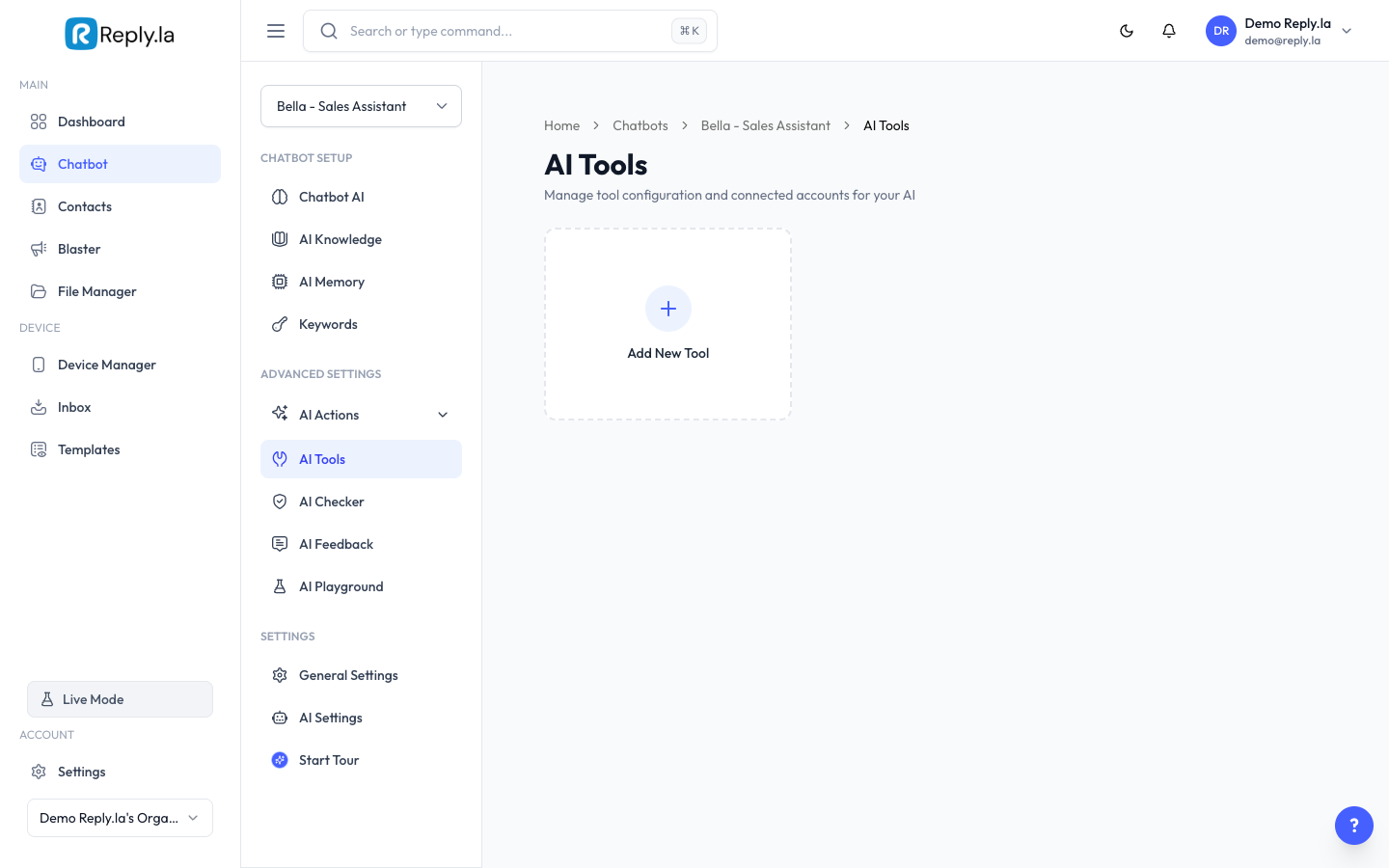
- Go to Chatbot > click your chatbot > AI Tools.
- Click the + button or Add Tool.
- Choose a tool type from the available templates.
- Configure the tool:
- Google Sheets: Connect your Google account, then select the spreadsheet and sheet.
- Calculator: Choose what kind of calculations the AI should perform.
- Custom API: Enter the API endpoint, method, headers, and parameters.
- Click Save.
Google Sheets Example
If you have a spreadsheet with your product inventory:
Product | Price | Stock |
|---|---|---|
Tudung Bawal | RM25 | 50 |
Tudung Sarung | RM35 | 30 |
When a customer asks "Do you have Tudung Bawal in stock?", the AI checks your spreadsheet and replies: "Yes! Tudung Bawal is available at RM25. We have 50 pieces in stock."
Google Sheets Modes
When adding a Google Sheets tool, you can choose between two modes:
Mode | Description |
|---|---|
Auto Mode (default) | The AI can read, write, and update rows in your spreadsheet automatically. Use this when you want the AI to log orders, update stock, or add new entries. |
Read Only | The AI can only read data from your spreadsheet. It cannot make any changes. Use this for price lists, catalogs, or any data you don't want the AI to modify. |
Manage Tools
- Each tool has an Active/Inactive status. Toggle it off to temporarily disable a tool without deleting it.
- Click the Settings icon on any tool to edit its configuration.
- Click the Delete icon to permanently remove a tool.
Common Questions
Do AI Tools cost extra tokens?
Yes, using tools adds a small number of extra tokens per conversation.
Can the AI write to my Google Sheet?
Yes! With Auto Mode (the default), the AI can read, write, and update rows in your Google Sheets. If you prefer to keep your spreadsheets read-only, you can switch to Read Only mode in the tool settings.
What if my spreadsheet changes?
The AI always reads the latest data. Updates are reflected on the next conversation.
Can I connect multiple tools to one chatbot?
Yes! You can add as many tools as you need.
Updated on: 21/04/2026
Thank you!